
Buying a Windows VPS may look simple at first. You choose a plan with enough CPU, RAM, and storage, pay, and start using your server.
But choosing good Windows VPS hosting involves more than comparing numbers on a pricing table.
Two Windows VPS plans can have similar specifications but provide very different performance. CPU quality, RAM, storage technology, RDP access, server location, backups, security, and technical support can all affect your experience.
The right VPS also depends on what you want to run.
You might need a Windows VPS for an ASP.NET website, Microsoft SQL Server, Remote Desktop, accounting software, ERP applications, development, or other Windows-based software.
This guide explains 10 important things to check before buying a Windows VPS server in simple language.
What Is Windows VPS Hosting?
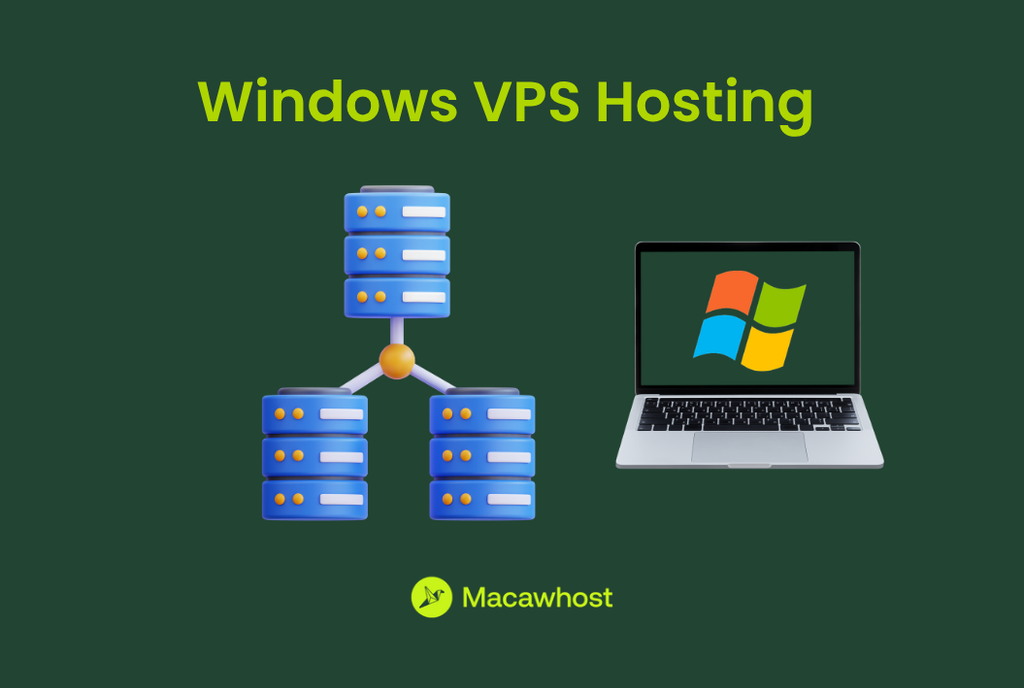
A Windows VPS is a Virtual Private Server running Microsoft Windows Server.
A physical server is divided into several virtual servers. Each VPS operates independently and receives resources such as:
- CPU
- RAM
- Storage
- Network bandwidth
- IP address
- Operating system
With Windows VPS hosting, you can normally connect to your server through Remote Desktop Protocol (RDP).
RDP gives you a graphical Windows desktop. Instead of managing everything through command-line commands, you can open applications, move files, change settings, and manage the server in an environment that looks familiar to Windows users.
Depending on your hosting provider and plan, you may also receive full Administrator access.
Windows VPS hosting is commonly used for:
- ASP.NET applications
- IIS web hosting
- Microsoft SQL Server
- Remote desktop environments
- Accounting applications
- ERP and CRM software
- Development and testing
- Windows-only applications
- Business software
However, before ordering a VPS, check these 10 points.
1. Check Whether You Actually Need Windows
Before comparing Windows VPS providers, first ask:
Does my application actually require Windows?
This may sound obvious, but it can save you money and simplify server management.
Windows VPS hosting is a logical choice when your application depends on Microsoft or Windows-specific technologies such as:
- ASP.NET
- IIS
- Microsoft SQL Server
- Windows desktop software
- Microsoft-based business applications
- Windows-specific development tools
However, many technologies can run perfectly well on Linux.
WordPress, PHP, MySQL, Python, Node.js, and many popular web applications can run on a Linux VPS.
Linux VPS hosting can also cost less because it usually has no Windows Server licensing charge.
Key Point
Choose Windows because your application requires Windows, not simply because Windows is familiar.
If your software works on both operating systems, compare Windows and Linux before deciding.
2. Check the CPU and vCPU Resources
CPU is one of the main resources responsible for processing tasks on your server.
Windows VPS providers usually describe CPU resources using vCPU, meaning virtual CPU.
You may see plans offering:
- 2 vCPU
- 4 vCPU
- 8 vCPU
- 16 vCPU
More vCPU resources can help your VPS process more work, but core count alone doesn’t determine CPU performance.
The physical processor used by the hosting provider, CPU generation, virtualization technology, and resource allocation can also affect performance.
You may need additional CPU resources when running:
- Busy websites
- Large databases
- Multiple Windows applications
- Development tools
- Several remote users
- CPU-intensive applications
- Business automation software
For a small application, a lower-vCPU plan may be enough.
For production workloads, it is usually better to leave extra capacity than to run your CPU near its limit.
Key Point
Do not compare Windows VPS plans using vCPU count alone.
Consider what application you are running and whether you can upgrade CPU resources later.
3. Make Sure You Have Enough RAM
RAM is particularly important when running Windows Server.
Windows itself consumes some memory. Your applications then require additional RAM.
For example, your server might simultaneously run:
- Windows Server
- IIS
- SQL Server
- Antivirus or security software
- Monitoring services
- Your website or application
If the VPS doesn’t have enough RAM, performance can slow down.
Applications may take longer to respond, Remote Desktop sessions may feel sluggish, and heavy memory usage can cause other performance problems.
As a simple starting point:
4 GB RAM: Suitable for lighter Windows workloads.
8 GB RAM: More comfortable for business applications, websites, and moderate multitasking.
16 GB RAM or more: Better suited to heavier databases, multiple applications, or larger workloads.
These are not fixed requirements. Your application’s recommended specifications should always take priority.
Key Point
Give Windows enough RAM to run the operating system and your applications comfortably.
Also check whether you can increase RAM without migrating to another server.
4. Choose Fast SSD or NVMe Storage
Do not look only at storage capacity.
Storage type matters too.
A hosting plan may offer 100 GB of storage, but you should also ask what technology powers it.
Modern VPS hosting commonly uses SSD or NVMe-based storage.
NVMe is designed for fast data access and can be particularly useful for applications that frequently read and write data.
Fast storage can improve areas such as:
- Application loading
- Database operations
- Windows startup
- Website performance
- File access
- Software installation
- Windows updates
This matters especially if your Windows VPS runs SQL Server or another database-heavy application.
Key Point
Don’t ask only how many GB you receive. Ask whether the VPS uses SSD or NVMe storage.
For performance-focused workloads, NVMe can be a useful feature.
6. Confirm RDP and Administrator Access
One of the biggest advantages of Windows VPS hosting is Remote Desktop Protocol (RDP).
RDP lets you connect to the VPS remotely and control it through a graphical Windows desktop.
You can connect from your computer, enter the server IP address and login details, and work with the remote server.
Once connected, you may be able to:
- Install software
- Manage files
- Configure IIS
- Manage databases
- Change Windows settings
- Run Windows applications
- Perform administrative tasks
Before buying, confirm that the plan provides the level of access your application requires.
For a self-managed Windows VPS, this commonly includes:
- Server IP address
- Administrator credentials
- RDP access
- Permission to install applications
- Administrative control
Key Point
If you need full control, confirm that the plan includes full Administrator and RDP access before ordering.
You should also protect RDP with strong credentials and appropriate security controls.
7. Choose the Right Server Location
Where your Windows VPS is physically hosted can affect latency.
Latency is the time required for data to travel between you and the server.
Lower latency generally results in a more responsive connection.
Server location becomes particularly important when using:
- Remote Desktop
- Business applications
- Real-time applications
- Database-connected software
- Websites serving regional customers
For example, if most of your users are located in Europe, hosting closer to Europe can make sense.
If you mainly serve users in the Middle East, choosing infrastructure closer to the region may reduce network travel time.
Key Point
Choose a server location close to the people or applications that will connect to it most often.
Do not automatically select the cheapest location.
8. Check Backup and Snapshot Options
A VPS is not automatically a backup.
Your data can still be affected by:
- Accidental deletion
- Software errors
- Malware
- Failed updates
- Database corruption
- Incorrect configuration
- Human error
That makes a proper backup strategy essential for important workloads.
Before purchasing Windows VPS hosting, check whether the provider offers:
- Automated backups
- Manual backups
- VPS snapshots
- Backup retention
- Off-server backup options
Snapshots are particularly useful before making major changes.
For example, you might create a snapshot before a Windows update or application upgrade so you have another recovery option if something goes wrong.
Key Point
Never assume your VPS provider automatically backs up everything.
Find out exactly what is backed up, how frequently backups occur, and how long they are retained.
9. Understand Managed vs Unmanaged Windows VPS
Windows VPS hosting can be either managed or unmanaged.
With an unmanaged Windows VPS, you generally handle server administration.
Tasks can include:
- Installing applications
- Configuring Windows
- Installing updates
- Managing firewall rules
- Monitoring resources
- Troubleshooting issues
- Managing security
- Configuring backups
A managed Windows VPS may include help from the hosting company with some server-management tasks.
However, there is an important detail:
The meaning of “managed” is not the same at every hosting company.
One provider might include operating system updates and monitoring, while another may include much more or much less.
Key Point
Read what “managed Windows VPS” actually includes before paying extra for management.
If you do not have server-management experience, a managed option may be easier.
Experienced system administrators may prefer the control of an unmanaged VPS.
10. Match the Windows VPS to Your Workload
No single Windows VPS configuration is perfect for everyone.
Choose resources based on what you intend to run.
Windows VPS for ASP.NET
ASP.NET applications may require IIS, sufficient RAM, suitable CPU resources, and database connectivity.
Small applications may run comfortably on a modest VPS, while high-traffic applications require more resources.
Windows VPS for SQL Server
Microsoft SQL Server can consume significant RAM and perform frequent storage operations.
Database-heavy workloads may benefit from additional memory and fast NVMe storage.
Windows VPS for Remote Desktop
For RDP use, consider CPU, RAM, network performance, and server location.
The more applications and users running simultaneously, the more resources you’ll likely need.
Make sure your intended multi-user configuration also meets the applicable Microsoft licensing requirements.
Windows VPS for Business Applications
Accounting, ERP, CRM, and other business applications can have specific system requirements.
Always check the software vendor’s recommended CPU, RAM, storage, database, and Windows Server requirements.
Windows VPS for Development
A Windows VPS can provide developers with a remote environment for .NET development, IIS, SQL Server, testing, automation, and other Windows tools.
Snapshots and easy resource upgrades can be particularly useful for development environments.
Key Point
Buy resources for your workload rather than simply buying the cheapest Windows VPS available.
Windows VPS Buying Checklist
Before placing your order, check:
- Does your software require Windows?
- How many vCPU cores do you receive?
- Is there enough RAM?
- Does the VPS use SSD or NVMe storage?
- Is the Windows Server license included?
- Do you receive Administrator and RDP access?
- Which server locations are available?
- Are backups and snapshots available?
- Is the VPS managed or unmanaged?
- Can CPU, RAM, and storage be upgraded later?
Answering these questions makes Windows VPS providers much easier to compare.
Also read our article on how to choose the right web hosting
FAQ
Windows VPS hosting is a virtual server that runs Microsoft Windows Server. It provides dedicated virtual resources and typically lets you control the server remotely through RDP.
You can use a Windows VPS for ASP.NET websites, IIS, Microsoft SQL Server, remote desktop environments, business applications, development, testing, and Windows-specific software.
It depends on the workload. Lightweight applications may work with around 4 GB RAM, while business software, databases, and heavier workloads may need 8 GB, 16 GB, or more. Check the requirements of the applications you intend to run.
RDP stands for Remote Desktop Protocol. It lets you access your Windows VPS remotely through a graphical desktop interface.
It depends on your software. Windows VPS is typically suitable for Microsoft technologies and Windows-specific applications. Linux VPS can suit applications such as PHP, MySQL, Python, and many web platforms.
Windows VPS hosting can be secured effectively when the server is configured and maintained correctly. Important measures include strong passwords, regular updates, firewall configuration, restricted remote access, monitoring, and reliable backups.
If you have sufficient Administrator access, you can generally install compatible Windows software. Your hosting provider’s acceptable-use policy and Microsoft’s or the software vendor’s licensing terms still apply.
Many VPS providers let you upgrade CPU, RAM, storage, or other resources. Check the provider’s upgrade options before purchasing if you expect your workload to grow.
Windows VPS can be easier for people familiar with the Windows interface because you can manage it through Remote Desktop. However, running a production server still requires proper security, updates, monitoring, and backups.
Final Thoughts
Choosing the right Windows VPS hosting plan is about more than finding the lowest monthly price.
Start by checking whether your application genuinely requires Windows. Then compare the CPU, RAM, storage technology, RDP access, server location, backup options, server management, security, and upgrade possibilities.
Most importantly, match the server resources to your actual workload.
A properly selected Windows VPS gives your website or application the resources it needs today while providing room to grow as your requirements increase.
If you are comparing Windows VPS plans, check the full specifications and what is included in the final monthly price before deciding.