

Searching for how to backup WordPress site? Regular backups are one of the easiest ways to protect your website from data loss, hacking, or failed updates.
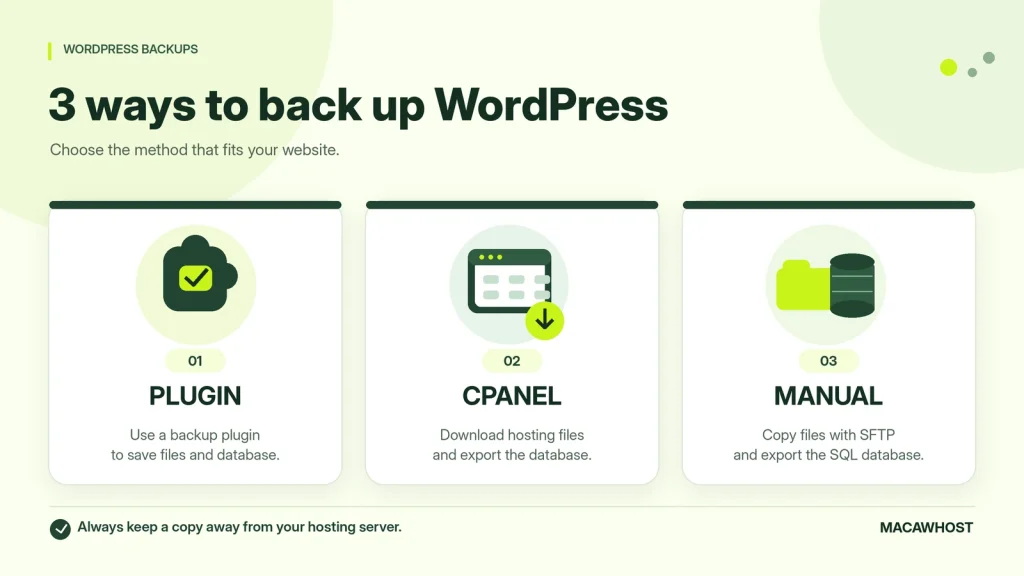
You don’t need advanced technical skills. You can back up your WordPress website using a plugin, your hosting control panel, or a manual method.
Here’s how to do it step by step.
Key Takeaways
- A complete WordPress backup includes website files and the database.
- Backup plugins are the easiest option for beginners.
- You can also use cPanel or manually download your website data.
- Always keep a backup copy outside your hosting account.
What Does a WordPress Backup Include?
Before creating a backup, it’s important to know what you’re saving.
A complete WordPress backup has two main parts:
- Website files: Themes, plugins, images, uploads, and configuration files.
- Database: Posts, pages, comments, user accounts, and website settings.
Both are essential. If you only back up your files or database, you may not be able to restore your entire website.
Method 1: Back Up WordPress Using a Plugin
Using a backup plugin is the simplest option for most WordPress users.
One popular choice is UpdraftPlus, which supports manual backups, automatic schedules, and remote storage.
Steps to Create a Backup With UpdraftPlus
- Log in to your WordPress dashboard.
- Go to Plugins → Add New Plugin.
- Search for UpdraftPlus, then install and activate it.
- Open Settings → UpdraftPlus Backups.
- Click Backup Now.
- Make sure both files and the database are selected, then start the backup.
Once the process finishes, check that your backup appears in the backup list.
Tip: Set up automatic backups and connect a supported cloud storage service, such as Google Drive or Dropbox, to keep your backups separate from your hosting server.
Method 2: How to Backup WordPress Site Using cPanel
If your hosting provider offers cPanel, you can create a backup without installing a WordPress plugin.
This method is useful when you want to back up your website directly from your hosting account.
Steps to Back Up WordPress in cPanel
- Log in to your hosting account and open cPanel.
- Under Files, select Backup Wizard.
- Click Back Up and choose Home Directory to download your hosting files.
- Return to the backup options and select MySQL Databases.
- Download the database used by your WordPress installation.
Save both downloads in a secure location.
Important: These are separate file and database backups. Restoring them may require additional steps, so check your hosting provider’s restoration instructions.
If you’re new to cPanel, our guide to the best web hosting control panels for beginners explains how different control panels work.
Method 3: Back Up Your WordPress Site Manually
If you prefer not to use a plugin or cannot access your WordPress dashboard, you can back up your website manually.
Here’s how to backup WordPress site files and databases directly from your hosting server.
Step 1: Download Your WordPress Files
Connect to your hosting server using an SFTP client such as FileZilla.
Find your WordPress installation, commonly located inside the public_html directory, and download its files to your computer.
Make sure you include:
wp-content— themes, plugins, and uploadswp-config.php— database connection settings.htaccess— server configuration rules, if present- Other WordPress files and folders
Enable hidden-file visibility if necessary so you don’t miss important configuration files.
Step 2: Export Your WordPress Database
- Open phpMyAdmin through your hosting control panel.
- Select your WordPress database.
- Click the Export tab.
- Choose Quick as the export method and SQL as the format.
- Click Export or Go to download the database.
If you’re unsure which database WordPress uses, check the DB_NAME setting in your wp-config.php file.
Step 3: Store Your Backup Safely
Keep your downloaded website files and database export together in a clearly named folder.
Save another copy to secure cloud storage or an external drive.
You now have a manual WordPress backup that you can use for recovery if needed.
How Often Should You Back Up WordPress?
Your backup frequency depends on how often your website changes.
| Website Type | Recommended Frequency |
|---|---|
| Personal blog | Weekly |
| Business website | Daily |
| Online store | Daily or more frequently |
For websites that receive frequent orders, bookings, or registrations, consider more frequent backups to reduce potential data loss.
Also, create a fresh backup before:
- Updating WordPress, themes, or plugins
- Making major website changes
- Moving to another hosting provider
- Changing important website settings
Planning to move your WordPress website to another hosting provider? Follow our website migration checklist to transfer your site safely and minimize downtime.
How to Check if Your WordPress Backup Works
Creating a backup is only useful if you can restore it when needed.
Before relying on your backup:
- Confirm it completed without errors.
- Check that both files and the database are included.
- Keep at least one copy outside your hosting server.
- Test restoring it on a staging or test website when possible.
Avoid testing a restore directly on your live website, as it could overwrite newer content.
Keep Your WordPress Website Protected
Now that you know how to backup WordPress site files and databases, make regular backups part of your website maintenance routine.
If you prefer hosting with built-in backup features, MacawHost WordPress Hosting offers automatic daily backups, cPanel access, and WordPress management tools.
Whichever backup method you choose, always keep an independent copy and make sure you can restore it when needed.